

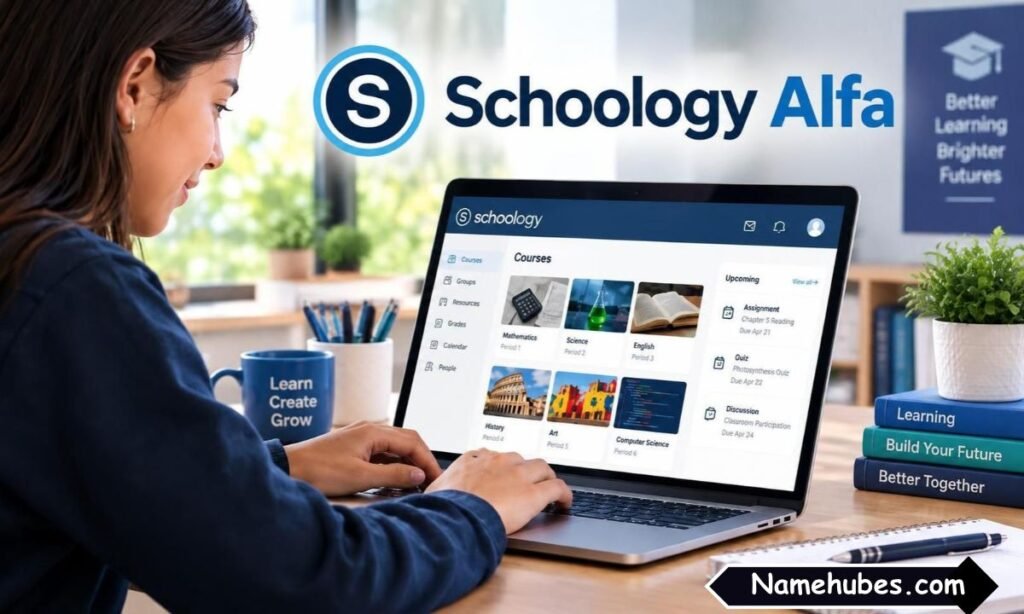
Schoology Alfa is the online learning space for students at Alfa Fundación in Monterrey, Nuevo León, Mexico. You use it to open your classes. You see your tasks. You check your grades. Everything sits in one place. It saves time and keeps school simple.
Many people feel lost the first time they sign in. That’s normal. You may wonder which account to use. You may not know where to find your courses. Parents often have questions too. Maybe you forgot which email goes with your school profile. Maybe you just want a clear and simple map. This guide answers them in plain words. You’ll learn how the Microsoft sign-in works. You’ll see how to reach your assignments and teacher feedback. You’ll also find tips to fix common login problems. Read on. You’ll feel ready to use the platform with confidence.
What Is Schoology Alfa?
Schoology Alfa is the online learning space used by Alfa Fundación. It runs on Schoology, a learning management system (LMS). It isn’t a separate product.
Think of it as a digital classroom. Teachers post lessons there. You open them from home or school.
Schoology Alfa usually brings together:
- Course materials
- Online assignments
- Grades
- Teacher feedback
- Notifications
Each school sets up its own version. So features can differ from other schools.
Student: Is Schoology Alfa a new app?
Friend: No. It’s the school’s own Schoology environment.
Who Is Alfa Fundación?
Alfa Fundación is an educational organization based in Monterrey, Nuevo León, Mexico. It works toward social mobility through education. The group supports talented students from public schools.
Its programs focus on academic development. Students also join enrichment activities. Many receive tutoring and university preparation.
Common learning areas include:
- Mathematics
- Science
- Literature
- Computing
- Creativity
- Sports
- Community service
Preparatoria Alfa Fundación serves students at the high school level. Schoology Alfa supports that daily learning online.
Schoology Alfa Login: How to Access the Portal
The Schoology Alfa login takes about a minute. Use the official address: alfafundacion.schoology.com.
Follow these steps:
- Open your browser.
- Type the official address.
- Choose your school Microsoft account.
- Enter your email and password.
- Land on your student dashboard.
Your school gives you these student credentials. Keep them safe.
Student: I typed the address. A Microsoft page opened.
Teacher: That’s normal. Schoology Alfa uses your school sign-in.
How the Microsoft Login Works
Schoology Alfa doesn’t ask for a separate password on its own page. It sends you to Microsoft first. This is called single sign-on (SSO).
Here’s the flow:
- You enter your school-authorized Microsoft account.
- Microsoft checks who you are.
- Microsoft sends you back to the portal.
- Schoology matches your institutional login to your profile.
One account opens more than one school tool. You remember fewer passwords. The school controls who gets in.
This process is Microsoft Office 365 authentication. Ask your school if your account works differently.
What If the Schoology Alfa Login Does Not Work?
Don’t panic. Most login problems have simple fixes.
Try these first:
- Check your username or email for typos.
- Retype your password slowly.
- Clear your browser cache.
- Try another browser.
- Confirm the official Schoology address.
- Test your internet connection.
Still stuck? Read the error message. It often names the cause.
Student: Schoology Alfa says my account isn’t found.
Friend: Check the email you typed. Use the one your school gave you.
Check That You Are Using the Correct Account
Many people use the wrong email. Your phone may save a personal account. Schoology Alfa needs your school-authorized Microsoft account.
Check these points:
- Is it the email your school gave you?
- Did you sign out of personal accounts?
- Is the account active?
Here’s a quick tip. Open a private browser window. Then sign in fresh. This stops old accounts from getting in the way.
Student: I use my Gmail. Why does it fail?
Teacher: It won’t match your Schoology account permissions. Use your school account.
Do Not Create a New Account Automatically
Some pages show a sign-up button. Skip it. A new account can create a duplicate profile. Then your courses won’t appear.
Here’s why it matters:
- Your school already made your account.
- Your courses link to your existing Schoology account.
- Duplicates confuse grades and records.
Fix the sign-in first. If the problem stays, ask your school administrator.
Student: Should I register again on Schoology Alfa?
Teacher: No. Use your existing account. Don’t make a new one.
Contact Alfa Fundación for Account Level Problems
Some issues need staff help. You can’t fix them alone. Examples include locked accounts, missing courses, or wrong permissions.
Before you write, gather:
- Your full name
- Your grade or group
- Your school email
- A screenshot of the error
Then reach out to your school administrator or Alfa Fundación. Use the contact information on the official Alfa Fundación website. Never share your password.
Student: My Schoology Alfa courses are missing.
Teacher: Send me a screenshot. I’ll pass it to the administrator.
Can You Use Schoology Alfa on a Phone?
Yes, in most cases. You can open it in a phone browser. You can also try the Schoology application.
Mobile phone access helps when you’re away from a computer. You can:
- Check upcoming work
- Read teacher comments
- See notifications
Still, big tasks work better on a laptop. Long essays are easier to type there. Features may vary by school setup.
Student: Can I submit homework from my phone?
Teacher: Often yes. Check the assignment first. Some tasks need a computer.
What Can Students Do in Schoology Alfa?
Students manage school life in one place. Think of it as a student academic portal.
You can:
- Open course content
- Read learning materials
- Submit online assignments
- Check grades
- Read teacher feedback
- Track academic deadlines
- Join discussion areas
Your student dashboard shows what matters first. Over time, you build good habits. Planning and checking work often are real student academic responsibilities.
The exact tools depend on how Alfa Fundación sets up Schoology Alfa.
Access Courses and Learning Materials
Your courses live in one list. Open a course to see its content.
Teachers often organize materials with course folders. They may also use units and modules.
You may find:
- Slides and notes
- Videos and links
- Reading files
- Practice sheets
Start with the newest folder. Then move backward if needed.
Student: Where is the science material?
Teacher: Open your science course in Schoology Alfa. Check the unit folder.
View and Submit Assignments
Open the assignment first. Read the instructions twice. Then upload your file or type your answer.
Follow these steps:
- Open the course.
- Select the assignment.
- Attach your file.
- Press submit.
Check the assignment submission status afterward. It shows whether your work went through.
Student: Did Schoology Alfa get my homework?
Teacher: Look at the status. It should say submitted.
Check Grades and Teacher Feedback
Grades show how you’re doing. Teacher feedback shows how to improve. Read both.
In Schoology Alfa you may see:
- Scores for each task
- Teacher comments
- Rubrics or notes
- Your overall course grade
Don’t stop at the number. Comments explain mistakes. They also point out what you did well.
Student: I got 7 out of 10.
Teacher: Read my comments. They show how to earn 10 next time.
Follow Deadlines and Upcoming Work
Missing a deadline hurts your grade. Schoology Alfa helps you avoid that.
Use these tools:
- Digital calendars for due dates
- An upcoming work list
- Course pages for details
Check the calendar every morning. Plan big tasks early. Split them into small steps.
Student: Three tasks are due Friday.
Teacher: Start with the hardest one. Schoology Alfa shows each due date.
Receive Academic Notifications
Notifications keep you in the loop. They may announce new posts, grades, or comments.
You can often choose how to get them:
- Inside the portal
- By email
- Through the mobile app
Check your settings. Turn on what matters. Don’t ignore alerts for days. Academic notifications often carry urgent news.
Student: I never saw the update.
Teacher: Check your notification settings in Schoology Alfa.
What Can Teachers Do With Schoology?
Teachers run digital classes with Schoology. Their teacher permissions decide which tools they can use.
Common actions include:
- Course creation and updates
- Posting course materials
- Building assessment tools
- Using grading functions
- Starting discussion areas
- Sending messages to students
Teachers can also give feedback fast. Schoology integrations may connect other school tools. The exact setup depends on Alfa Fundación and its Schoology Alfa institutional configuration.
Can Parents Access Schoology Alfa?
It depends on school rules. Schoology supports parent or observer access. But Alfa Fundación decides whether it’s active.
Don’t assume you can create parent accounts yourself. Parent accounts usually need school approval.
Ask the school:
- Is parent access available?
- How do I get an invitation or access code?
- What can I see?
Students shouldn’t share their student credentials with parents.
Parent: Can I view my child’s grades on Schoology Alfa?
School: Please ask the administrator. Access depends on our setup.
Schoology Alfa Features That Should Not Be Assumed
Not every Schoology feature is on in every school. Features depend on institutional configuration.
Don’t assume:
- Every teacher uses all tools
- Parent access is open
- The mobile app works the same way
- Quizzes and grading work in each course
- Third-party integrations are active
Check with your teacher or school administrator. Trust what you see inside your own Schoology Alfa account. Online guides may describe other schools.
Schoology Alfa Privacy and Security
Your account holds personal data. Protect it.
Good habits:
- Use a strong unique password
- Never share student credentials
- Sign out on shared devices
- Use only the official Schoology address
- Report strange activity to the school administrator
Watch out for fake login pages. They can steal your details. Always check the web address before you type.
Student: A site asked for my Schoology Alfa password.
Teacher: Close it. Tell the school right away.
How to Use Schoology Alfa More Effectively
Small habits make a big difference.
Try this routine:
- Log in every day
- Check the calendar first
- Read teacher comments
- Open new course content
- Submit early
- Turn on notifications
Name your files clearly. Ask questions in discussion areas. Tell your teacher if something looks wrong.
Student: How do I stay on track?
Teacher: Spend ten minutes in Schoology Alfa each morning.
Frequently Asked Questions About Schoology Alfa
What is Schoology Alfa?
Schoology Alfa is the Schoology learning platform used by Alfa Fundación. Students use it to reach courses, assignments, grades, and teacher feedback.
Is Schoology Alfa a separate version of Schoology?
No. Schoology Alfa is Alfa Fundación’s own Schoology environment. It uses standard Schoology tools. Features depend on the school’s setup.
Where is the official Schoology Alfa login?
Use alfafundacion.schoology.com. Schoology Alfa then sends you to Microsoft. Sign in with your school account. Avoid unofficial login pages.
Why does Schoology Alfa send me to Microsoft?
Alfa Fundación uses Microsoft single sign-on. It confirms your school identity first. Then Schoology Alfa opens your account safely.
Can I access Schoology Alfa from a mobile phone?
Yes. You can open Schoology Alfa in a phone browser. You may also use the Schoology app. Features can vary.
What should I do if my Alfa Schoology account is not working?
Check your school Microsoft account and password first. Don’t create a new account. Contact your administrator if Schoology Alfa still fails.
Conclusion
Schoology Alfa gives Alfa Fundación students one clear place to learn. You log in with your school Microsoft account. Then you reach courses, assignments, grades, and teacher feedback. Schoology Alfa also helps you track deadlines and read notifications. It works on a computer and often on a phone.
Remember a few simple rules. Always use the official address. Never create a new account on your own. Pick a strong unique password and keep your personal data safe. If the login fails, check your account first. Still stuck? Contact your school administrator or Alfa Fundación. Teachers and parents should also know that features can differ. Schoology Alfa depends on how the school sets it up. Use Schoology Alfa every day. Check the calendar. Read the comments. Submit your work early. These habits turn Schoology Alfa into a real study partner.
